Help / Installing EachPayday
Installing EachPayday
EachPayday is a web app, and you can install it on your device so it opens from your home screen or dock, runs full screen like a native app, and works offline. Installing is optional, the app runs fine in a browser tab, but an installed copy opens faster and, on iPhone and iPad, helps your budget data stay put.
On a computer
In Chrome, Edge or a similar browser, look for the install icon in the address bar, or open the browser menu and choose Install EachPayday. The app then opens in its own window and sits alongside your other apps. Safari on a Mac uses the Share menu, then Add to Dock.
On an Android phone or tablet
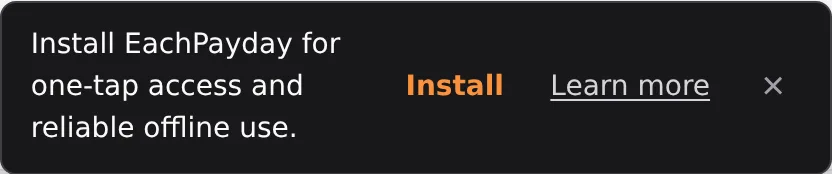
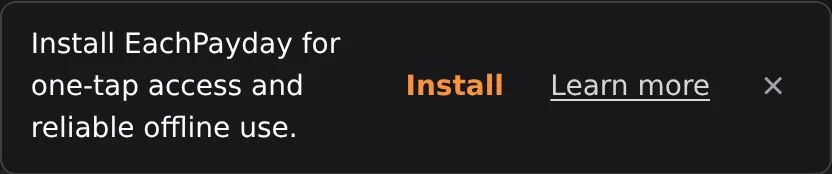
Open Chrome's menu and choose Install app, or Add to Home screen. EachPayday is added to your home screen and app drawer and opens full screen. You may also see EachPayday's own install prompt, with an Install button.
On iPhone or iPad
Open app.eachpayday.com.au in Safari, tap the Share button, then choose Add to Home Screen. Apple does not allow apps to install automatically here, so this step is manual. Once added, EachPayday opens full screen and works offline. Keep a recent backup on iOS especially: Apple can clear a web app's storage if the device is low on space and the app has not been opened for a while, and a backup restores you in seconds.
About the install prompt
When your browser supports installing, EachPayday shows a gentle prompt suggesting you install it. It appears the first time, then at most once a week until you install, and you can close it any time with the close button or the Escape key. Once the app is installed the prompt stops for good.